Store Gallery Documentation & User Guide
Welcome to Store Gallery (3D Shell Studio)! Store Gallery is a professional mockup and screenshot generator for App Store and Google Play. Featuring 360° dynamic 3D device shells, high-resolution rendering, personalized typography, and ambient lighting & gradient backgrounds, it empowers developers and designers to quickly export eye-catching, professional store graphics in one click.
1. Background & Motivation
Independent developers and product teams often share the same frustration: after spending months building features and polishing code, they get stuck at the finish line — crafting App Store Preview Screenshots.
Hiring professional UI designers can be prohibitively expensive; manually opening Photoshop or Figma to tweak dimensions, fit device frames, and align typography easily eats up half a day. Existing 3D rendering tools (such as Rotato) may look great, but they are expensive and often lack continuous multi-canvas showcase features. Generating store graphics using generic AI tools often yields distorted text and inaccurate device details that fail store review guidelines.
For developers seeking quick, professional, and zero-learning-curve screenshot creation, existing free tools either lack proper resolution presets or offer overly simplistic templates. Finding no ideal solution, we built Store Gallery. Its purpose is simple: enable developers to generate standard, aesthetically pleasing, multi-platform app store screenshots in just minutes.
2. Official Website & Core Features
Online Access: Store Gallery
1. Template Presets & Project History (Local Privacy Storage)
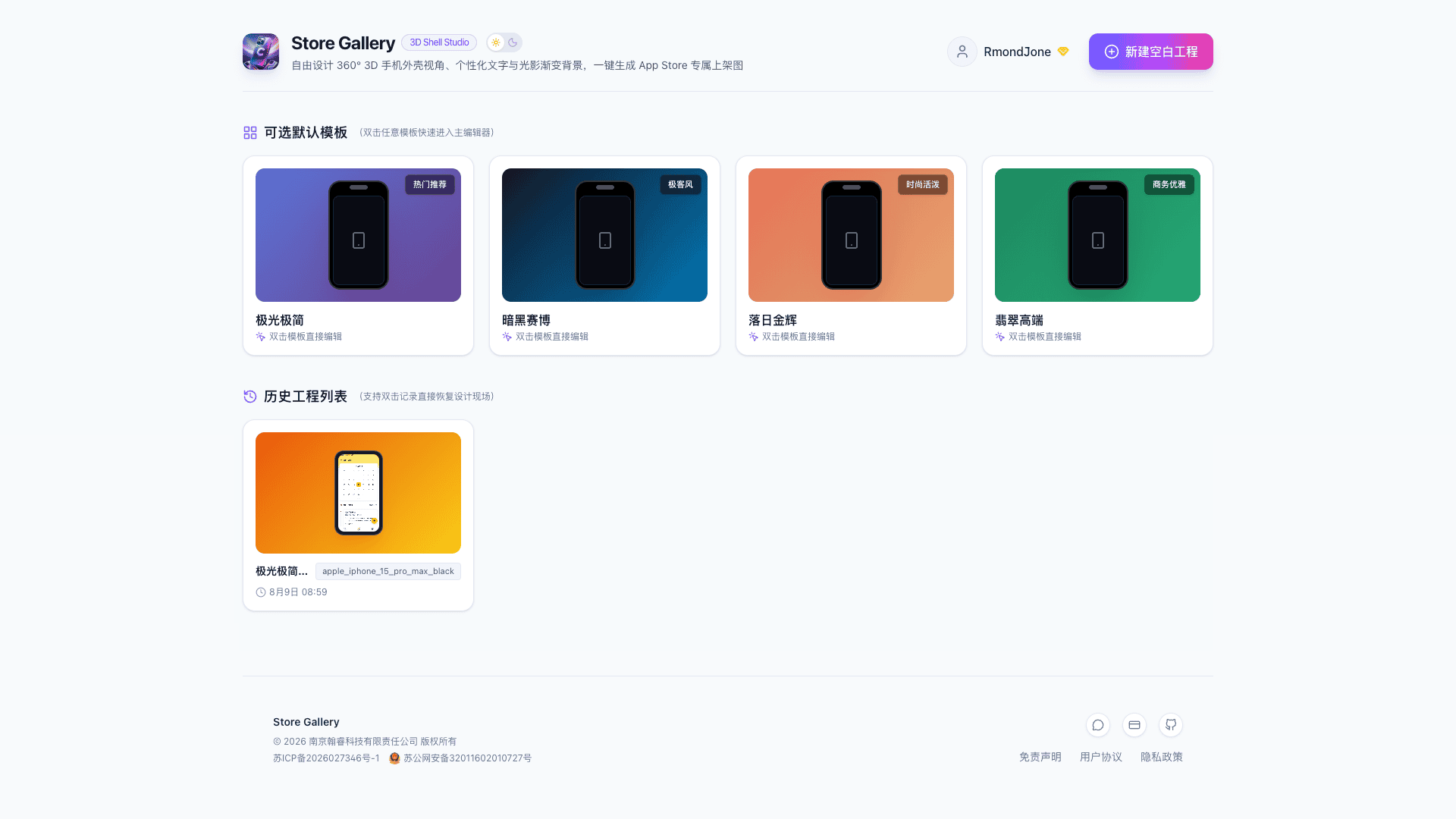
Upon entering the studio, you will find a rich collection of built-in design templates. Double-click any template to load it into your workspace. If you have worked on screenshots previously, you can retrieve past drafts from the "Project History" panel to continue editing.
A quick note on data security and privacy: All editing data, uploaded screenshot images, and local project configs in Store Gallery are 100% stored in your browser's local storage (IndexedDB / LocalStorage). There is no cloud upload of your raw designs, ensuring your unreleased app interfaces remain completely private.
2. Screenshot Editing Canvas & Full-Platform Dimensions
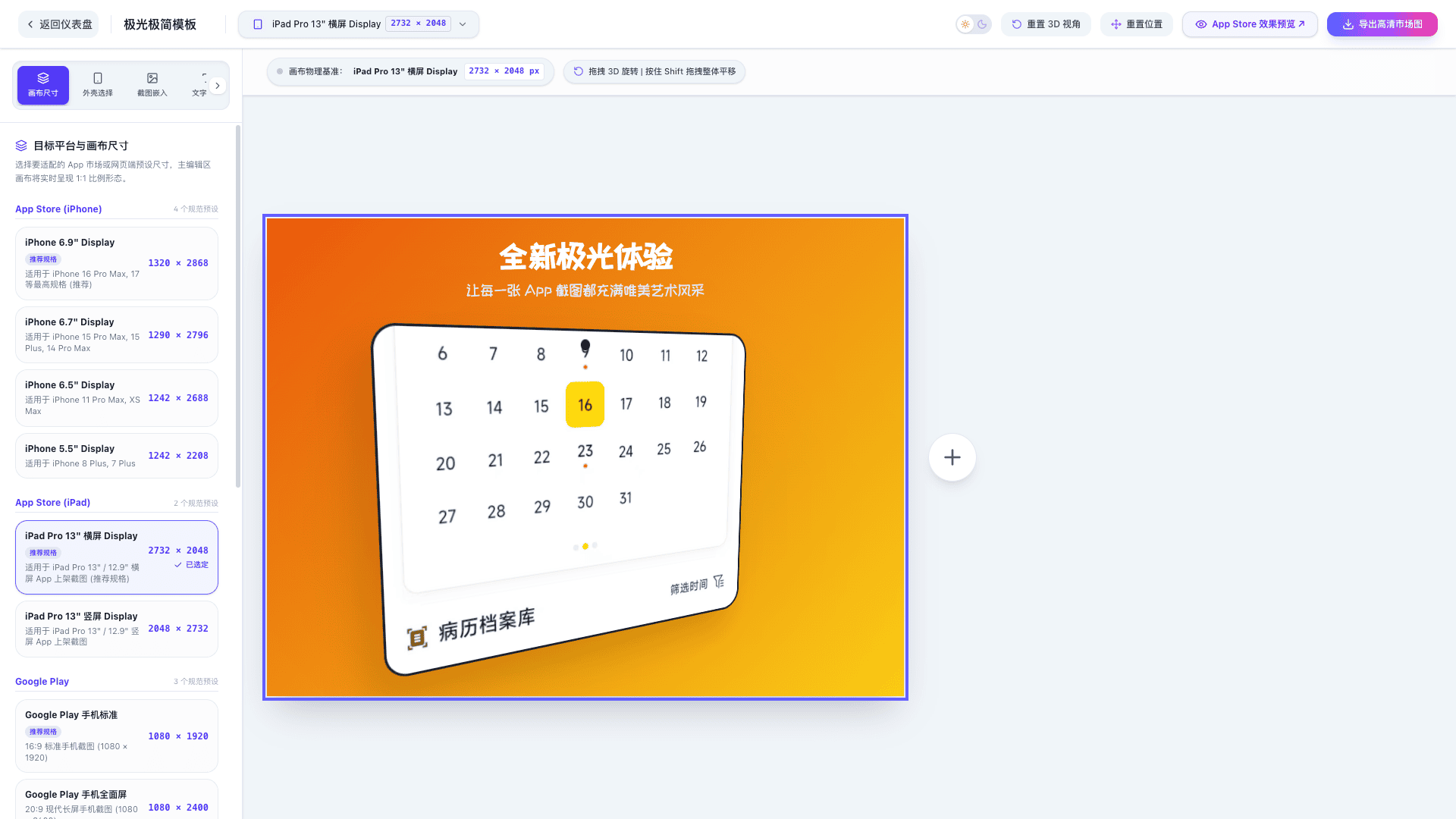
In the left sidebar of the editor, the first tool is Canvas Dimension Settings. Apple App Store, Google Play, and other app markets have strict pixel requirements for preview screenshots, where minor discrepancies will cause submission errors.
Store Gallery comes with pre-configured standard dimensions for all major platforms, eliminating the need to look up specifications manually:
| Platform / Category | Preset Name | Resolution (W × H px) | Recommended | Use Case & Description |
|---|---|---|---|---|
| App Store (iPhone) | iPhone 6.9" Display | 1320 × 2868 | ⭐ | For iPhone 16 Pro Max, 17 top-tier specs (Recommended) |
| App Store (iPhone) | iPhone 6.7" Display | 1290 × 2796 | - | For iPhone 15 Pro Max, 15 Plus, 14 Pro Max |
| App Store (iPhone) | iPhone 6.5" Display | 1242 × 2688 | - | For iPhone 11 Pro Max, XS Max |
| App Store (iPhone) | iPhone 5.5" Display | 1242 × 2208 | - | For iPhone 8 Plus, 7 Plus |
| App Store (iPad) | iPad Pro 13" Landscape | 2732 × 2048 | ⭐ | For iPad Pro 13" / 12.9" Landscape screenshots (Recommended) |
| App Store (iPad) | iPad Pro 13" Portrait | 2048 × 2732 | - | For iPad Pro 13" / 12.9" Portrait screenshots |
| App Store (Mac) | Mac App Store Standard (16:10) | 2880 × 1800 | ⭐ | For Mac App Store (2880 × 1800 Retina Display, Recommended) |
| App Store (Mac) | Mac App Store 2K (16:10) | 2560 × 1600 | - | For Mac App Store 2K Retina resolution (2560 × 1600) |
| App Store (Mac) | Mac App Store SD (16:10) | 1280 × 800 | - | For Mac App Store basic resolution (1280 × 800) |
| Chrome Web Store | Chrome Store Standard (16:10) | 1280 × 800 | ⭐ | For Chrome Extension Store standard slot (1280 × 800, Recommended) |
| Chrome Web Store | Chrome Store Small (16:10) | 640 × 400 | - | For Chrome Web Store basic size (640 × 400) |
| Chrome Web Store | Chrome Store Marquee Promo | 1400 × 560 | - | For Chrome Web Store Marquee Promo Tile banner (1400 × 560) |
| Google Play | Google Play Phone Standard | 1080 × 1920 | ⭐ | 16:9 Standard phone screenshot (1080 × 1920) |
| Google Play | Google Play Phone Fullscreen | 1080 × 2400 | - | 20:9 Modern elongated phone screenshot (1080 × 2400) |
| Google Play | Google Play Feature Graphic | 1024 × 500 | - | Feature Graphic top banner |
| Xiaomi App Store | Xiaomi Standard Screenshot | 1080 × 2400 | ⭐ | For Redmi & Xiaomi mainstream screens (1080 × 2400) |
| Xiaomi App Store | Xiaomi 2K Flagship Screenshot | 1440 × 3200 | - | For Xiaomi 14 Pro / 15 Pro 2K screens |
| Xiaomi App Store | Xiaomi HD Screenshot | 1080 × 1920 | - | For 16:9 traditional full screens |
| PC & Web Banner | PC Web Banner (16:9) | 1920 × 1080 | ⭐ | Full HD 1080P desktop web showcase (Recommended) |
| PC & Web Banner | PC Web MacBook Slot (16:10) | 1440 × 900 | - | For 16:10 laptop showcase |
| PC & Web Banner | PC Web 2K Header | 2560 × 1440 | - | High-res 2K website header banner |
3. 3D Device Shells & Multi-Canvas Continuous Showcase
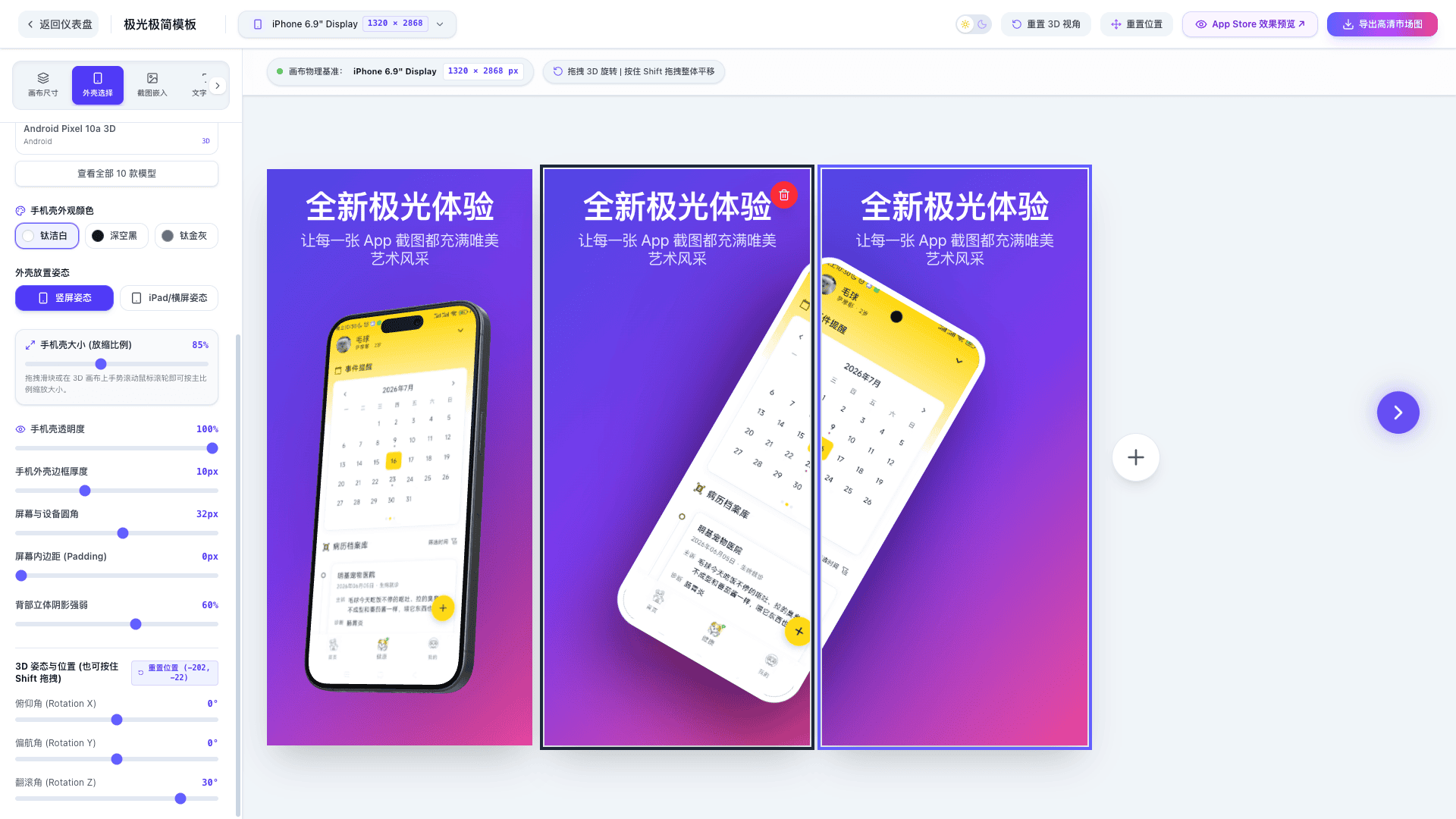
Switch to the "Device Shell" tab in the left sidebar to browse classic vector frames and realistic 3D hardware models. Simply click to select a device shell and drag your App screenshot onto the screen texture slot.
Key features of our 3D perspective and multi-canvas capabilities:
- 3D Pose Control: Click and drag on the canvas with the left mouse button to rotate the 3D model freely; hold
Shift+ left mouse drag to pan its position. - Detailed Frame Tweaks: For vector frames, you can adjust bezel thickness, corner radius, and background shadows.
- Continuous Multi-Canvas Showcase: Position a single 3D phone model spanning across 2 or 3 consecutive canvases to achieve the impressive continuous panoramic visual effect seen in top-tier app showcases.
4. Title Typography & Font Adjustments
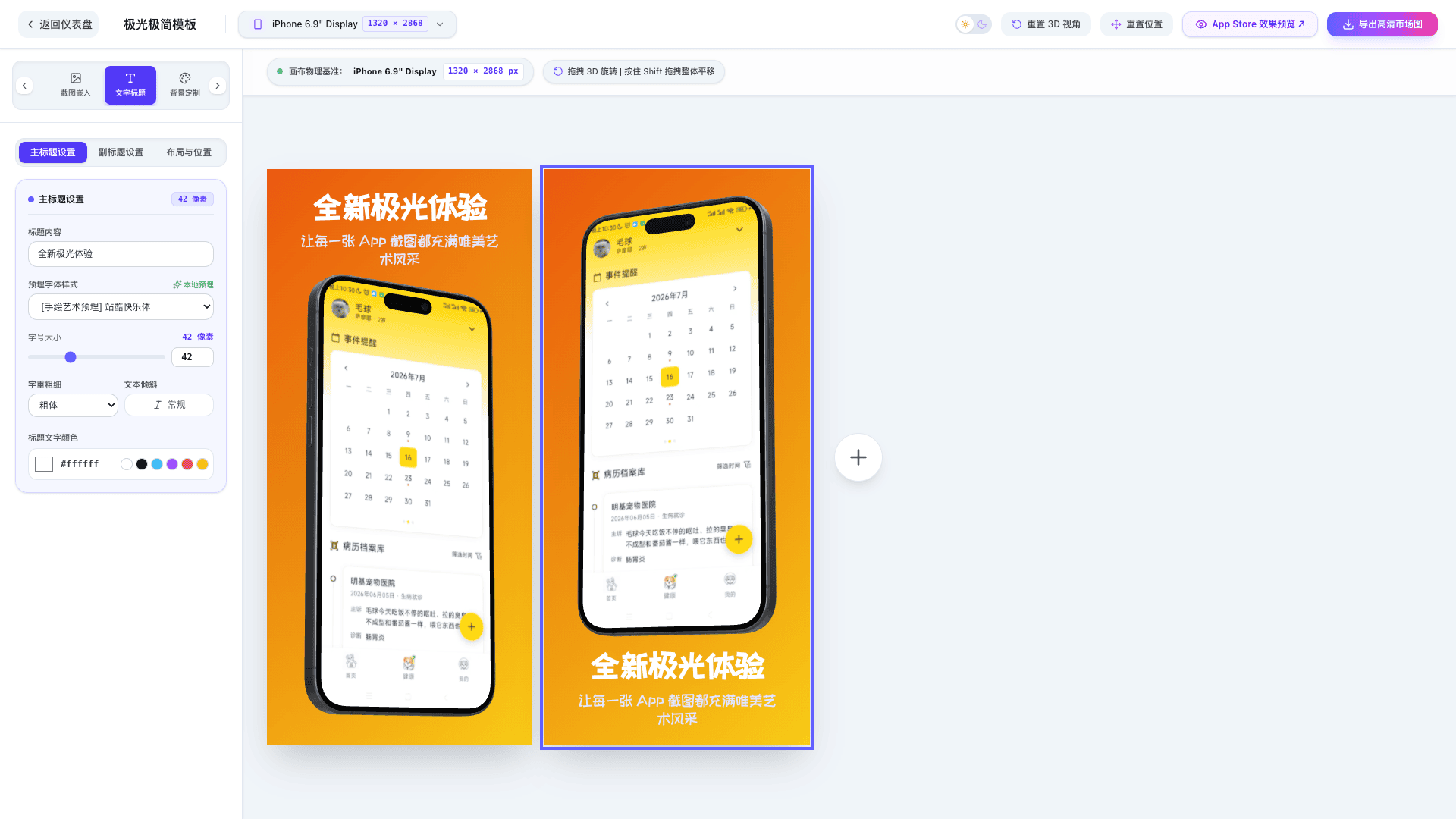
Navigate to the "Typography" tab in the left sidebar to configure primary titles and subtitles independently.
Beyond basic text editing, you can customize font family, text color, font size, weight, italic styles, and line height. Placement can be adjusted via drag-and-drop or precise pixel parameter inputs.
5. Background Customization
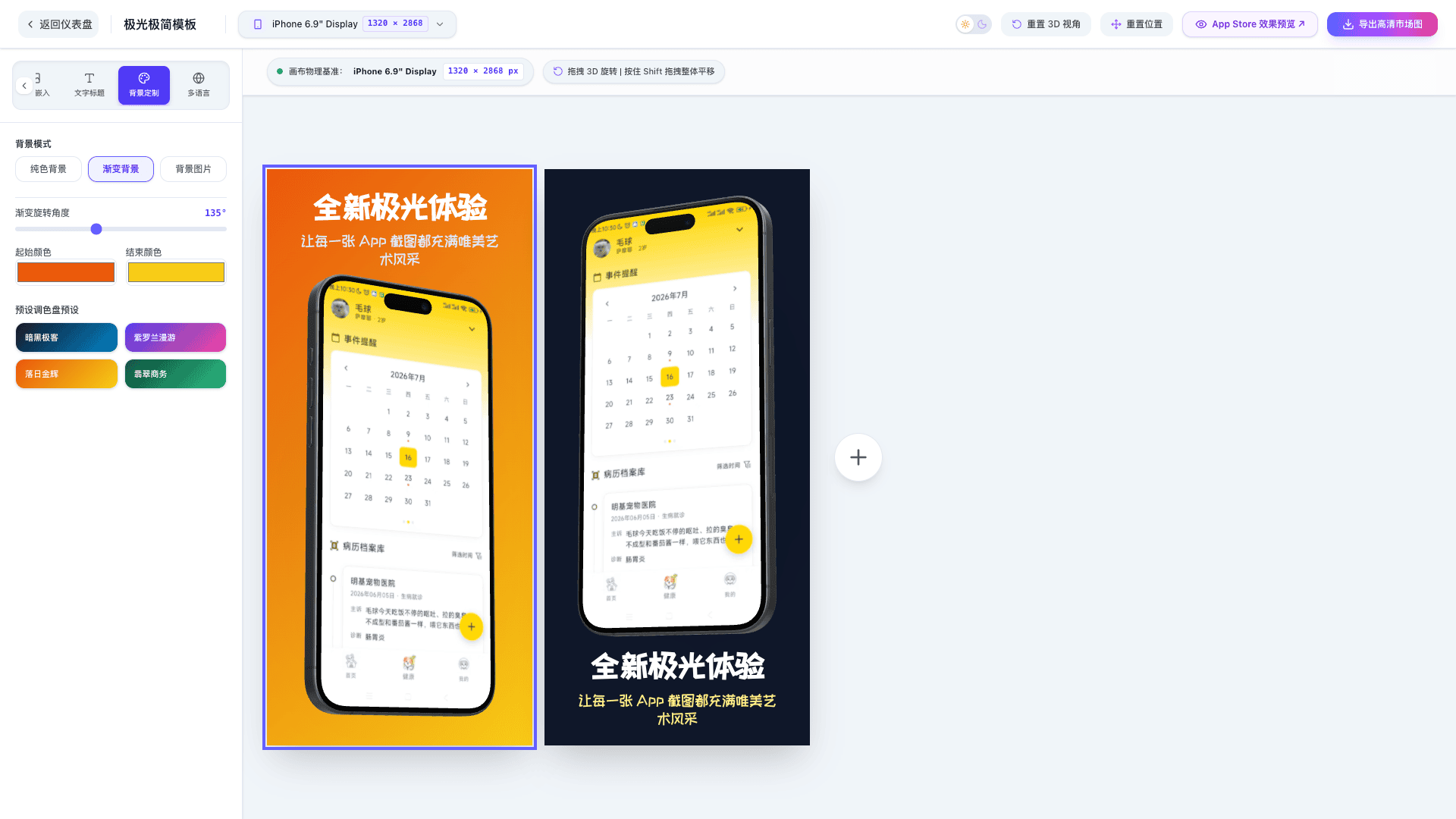
To give your promotional graphics depth and style, background color and lighting effects are essential.
In the "Background" tab, choose from dozens of preset solid colors and multi-color gradient palettes. If you have custom branding materials or brand guidelines, you can also upload your own background images with a single click.
6. One-Click Multi-Language ASO Translation & Batch Generation
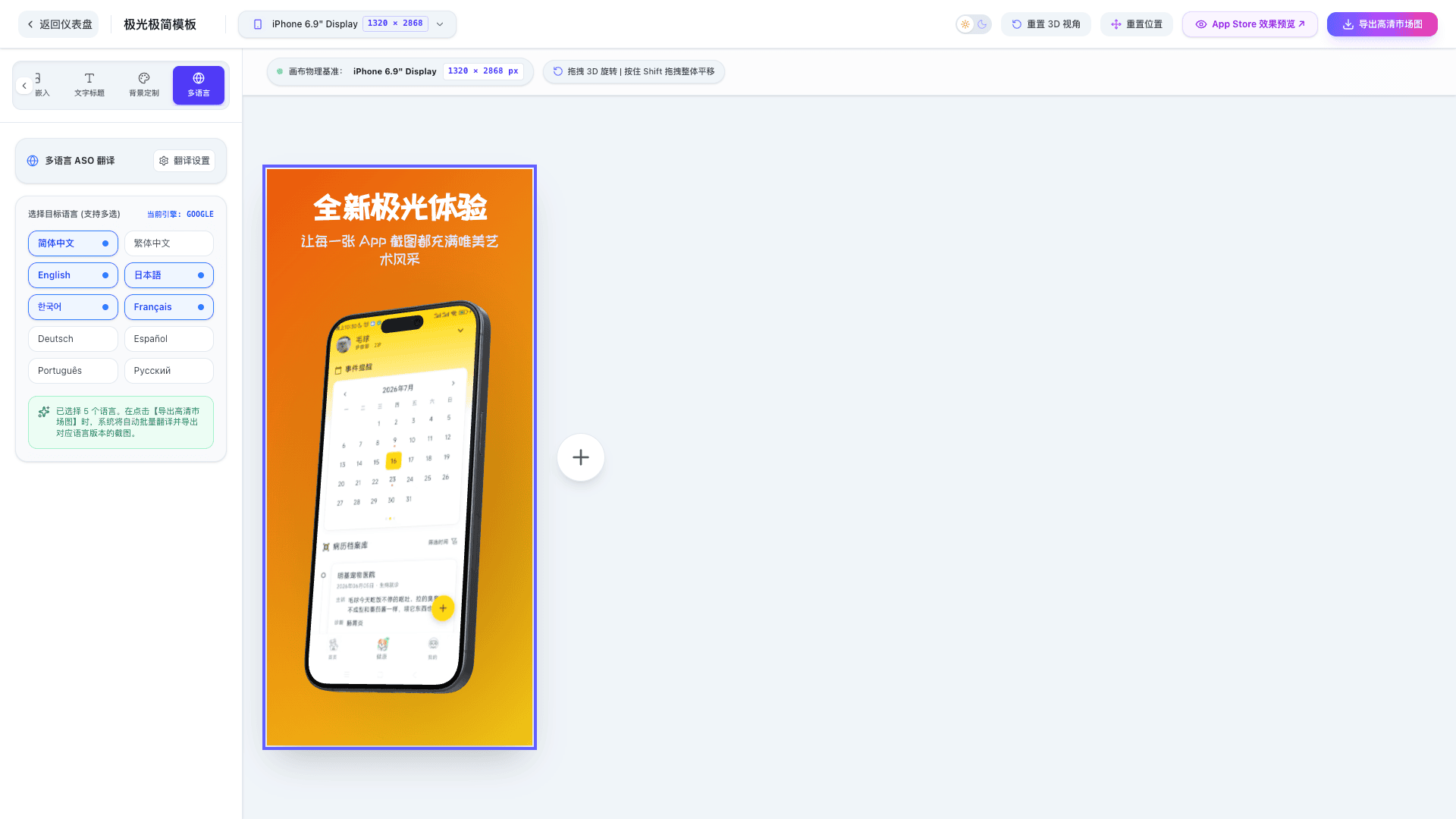
Launching your app globally often involves tedious localization work — manually duplicating files and replacing titles for English, Japanese, Korean, German, and dozens of other regions.
In Store Gallery's sidebar, simply check the target languages you wish to export. When exporting screenshots, the translation engine automatically translates your copy into multiple languages and produces independent screenshot packages for each region.
Furthermore, Store Gallery supports Custom Translation Engines, allowing you to input your own API keys (such as Google Translate, Microsoft Translator, Baidu, Youdao, Alibaba) for tailored translation quality. As always, all API keys and credentials are stored strictly in your local browser cache and are never transmitted to our servers.
3. Technical Support & Contact Us
If you encounter technical issues, have feature suggestions, or need customized solutions, feel free to reach out:
- Email: system@hanruinet.com
- Copyright: Nanjing Hanrui Technology Co., Ltd. © 2026